> ## Documentation Index
> Fetch the complete documentation index at: https://help.autoady.io/llms.txt
> Use this file to discover all available pages before exploring further.
# Use your own OpenAI or Claude API key
> Connect a provider key, choose what pays, and recover a failed connection.
Use your workspace's OpenAI or Claude API billing for internal **Agent** text and eligible account tools. This connection is separate from [AutoAdy API keys](/developers/authentication), which let external clients call AutoAdy.
## Prepare the provider account
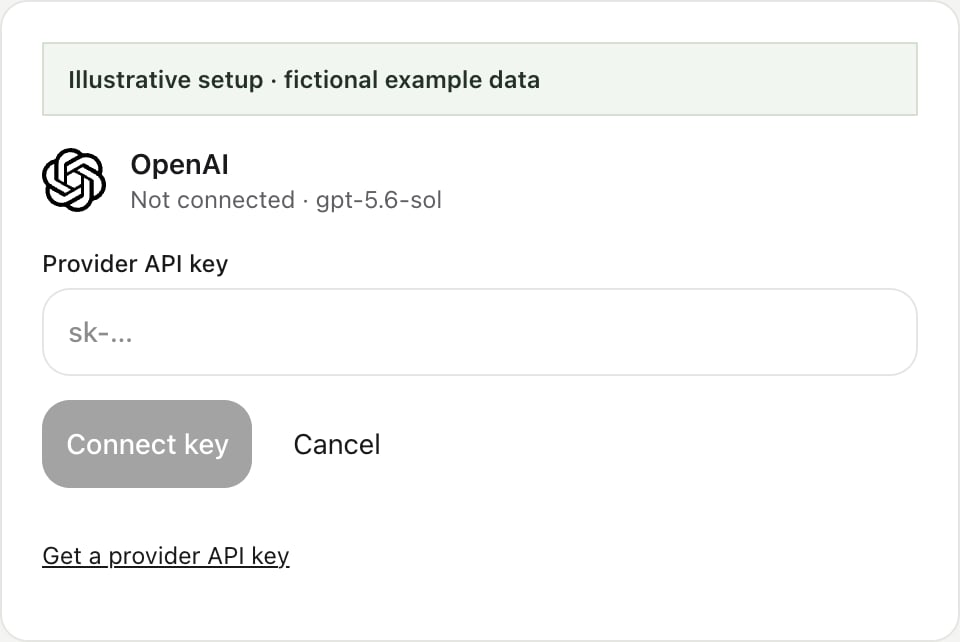
You need an API key with access to the Agent model shown in the provider card and working API billing. OpenAI keys come from the [OpenAI API platform](https://platform.openai.com/api-keys); Claude keys come from the [Claude Console](https://platform.claude.com/settings/keys).
ChatGPT and Claude consumer subscriptions do not fund these API calls. Set up API billing separately with [OpenAI](https://help.openai.com/en/articles/9039756-managing-billing-for-chatgpt-and-the-api-platform) or [Claude](https://support.claude.com/en/articles/9876003-i-have-a-paid-claude-subscription-pro-max-team-or-enterprise-plans-why-do-i-have-to-pay-separately-to-use-the-claude-api-and-console).
Only the AutoAdy workspace owner can connect, check, replace, or disconnect these keys. Owners and media buyers in that workspace can use the connected provider; Client Viewers cannot. This is a workspace connection, not a separate key for each selected ad account.
## Connect and check
1. As the owner, open [Settings → AI & Agents → AI providers](https://app.autoady.io/settings?tab=ai-providers).
2. On **OpenAI** or **Claude by Anthropic**, choose **Connect API key**.
3. Paste the **Provider API key**. For a Claude key that spans multiple provider workspaces, supply its **Workspace ID** when required.
4. Choose **Connect key**. Wait for **Connected** and the masked key suffix, then check that it identifies the key you intended.
5. Use **Check connection** for a later authentication/model-access check.
The check reads the provider's model list. It does not generate content or guarantee a future balance, rate limit, or successful response. Keys are encrypted on the server; the saved secret is not exposed to workspace operators.
 ## Choose what pays for the conversation
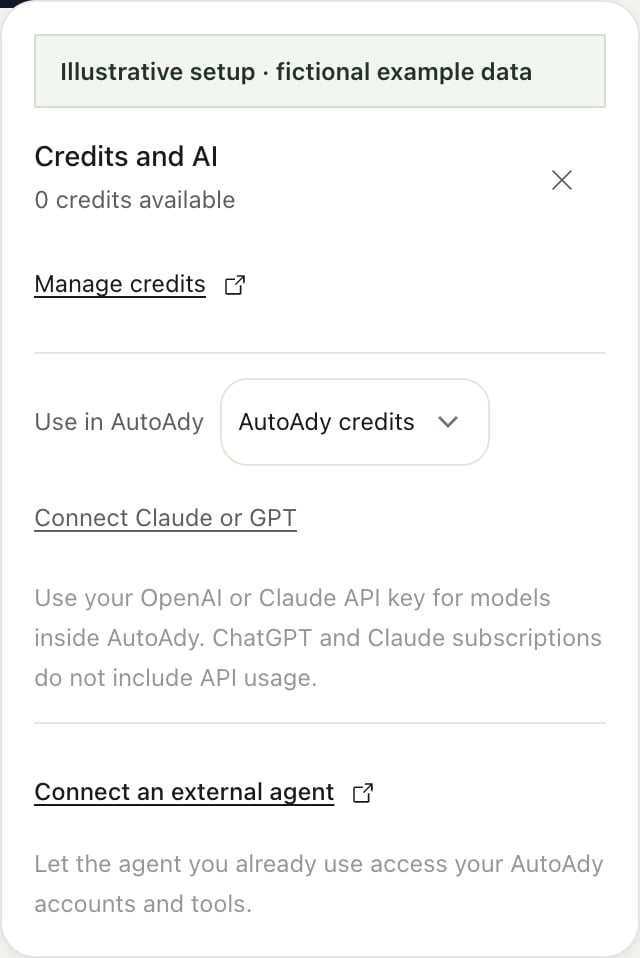
Open **Credits and AI** in the app sidebar, then use **Use in AutoAdy** before sending an Agent request. **AutoAdy credits** is the default; choose **OpenAI API key** or **Claude API key** when its connection is available. **Connect Claude or GPT** opens provider setup.
## Choose what pays for the conversation
Open **Credits and AI** in the app sidebar, then use **Use in AutoAdy** before sending an Agent request. **AutoAdy credits** is the default; choose **OpenAI API key** or **Claude API key** when its connection is available. **Connect Claude or GPT** opens provider setup.
 In API-key mode, eligible Agent text is billed by that provider and does not consume AutoAdy text credits. Supported tools include account reads and ordinary account-management actions; ad-account permissions, plan gates, previews, and required user approvals still apply. An own key does not authorize a change by itself.
Images, reports, and other paid AI tools are unavailable in this mode. To use them, explicitly select **AutoAdy credits** and review the quoted cost. AutoAdy does not silently fall back to credits if your provider fails.
Failed or stopped requests can still incur provider charges. Expand the response’s **OpenAI API billing** or **Claude API billing** details for token and attempt usage where available; your provider's billing records determine the invoice total.
## Replace or disconnect
Choose **Replace key**, enter the replacement, and use **Connect key**. Verify the new masked suffix and **Check connection** before returning to the Agent. Revoke an exposed or retired key in its provider console as well.
**Disconnect** removes this workspace's saved connection. It does not revoke the key at OpenAI or Anthropic. Reopen the conversation after a key or workspace-access change before continuing.
## Recover a failed response
| Message or state | Next action |
| - | - |
| Key rejected | Ask the owner to replace or reconnect it in **AI providers**. |
| API billing or quota unavailable | Restore billing with the provider; buying AutoAdy credits does not fund the provider account. |
| Rate limit reached | Wait before retrying. |
| Supported model unavailable | Check the model displayed on the card and the key's provider access. |
| Provider could not finish | Open the saved Agent conversation and inspect its last response/tool outcome before sending the request again. |
| Tool needs AutoAdy credits | Open **Credits and AI** and switch **Use in AutoAdy** to **AutoAdy credits**. |
| Workspace/key changed | Reopen the conversation with the intended identity and account. |
If provider settings cannot load, choose **Retry**; existing keys have not changed. For persistent configuration errors, contact [support](/help/contact) with the provider and message, never the secret key.
This documentation is built and hosted on [Mintlify](https://mintlify.com), a developer documentation platform.
In API-key mode, eligible Agent text is billed by that provider and does not consume AutoAdy text credits. Supported tools include account reads and ordinary account-management actions; ad-account permissions, plan gates, previews, and required user approvals still apply. An own key does not authorize a change by itself.
Images, reports, and other paid AI tools are unavailable in this mode. To use them, explicitly select **AutoAdy credits** and review the quoted cost. AutoAdy does not silently fall back to credits if your provider fails.
Failed or stopped requests can still incur provider charges. Expand the response’s **OpenAI API billing** or **Claude API billing** details for token and attempt usage where available; your provider's billing records determine the invoice total.
## Replace or disconnect
Choose **Replace key**, enter the replacement, and use **Connect key**. Verify the new masked suffix and **Check connection** before returning to the Agent. Revoke an exposed or retired key in its provider console as well.
**Disconnect** removes this workspace's saved connection. It does not revoke the key at OpenAI or Anthropic. Reopen the conversation after a key or workspace-access change before continuing.
## Recover a failed response
| Message or state | Next action |
| - | - |
| Key rejected | Ask the owner to replace or reconnect it in **AI providers**. |
| API billing or quota unavailable | Restore billing with the provider; buying AutoAdy credits does not fund the provider account. |
| Rate limit reached | Wait before retrying. |
| Supported model unavailable | Check the model displayed on the card and the key's provider access. |
| Provider could not finish | Open the saved Agent conversation and inspect its last response/tool outcome before sending the request again. |
| Tool needs AutoAdy credits | Open **Credits and AI** and switch **Use in AutoAdy** to **AutoAdy credits**. |
| Workspace/key changed | Reopen the conversation with the intended identity and account. |
If provider settings cannot load, choose **Retry**; existing keys have not changed. For persistent configuration errors, contact [support](/help/contact) with the provider and message, never the secret key.
This documentation is built and hosted on [Mintlify](https://mintlify.com), a developer documentation platform.