> ## Documentation Index
> Fetch the complete documentation index at: https://help.autoady.io/llms.txt
> Use this file to discover all available pages before exploring further.
# Set account defaults before publishing
> Save the correct Page, Instagram identity, tracking, attribution, and creative settings for new ads.
Account defaults provide starting values for supported creation and publishing flows. Set them on the intended Meta account, then inspect the actual campaign or ad preview before publishing. Saving a default does not rewrite existing ads or ad sets.
## Set the publishing identity
1. Select the intended account in the app sidebar and open [Settings → Account](https://app.autoady.io/settings?tab=settings).
2. Expand **Ad Account Settings**. Check the account name and currency.
3. Under **Identity Setup**, select the **Facebook Page** and **Instagram Account** that should represent the advertiser.
4. Under **EU Advertising Identity**, enter the **Beneficiary Name** and **Payer Name** where relevant. The beneficiary benefits from the ad; the payer pays for it. They can be the same.
5. Use that section's **Save** button. Reopen the section and verify the saved selections.
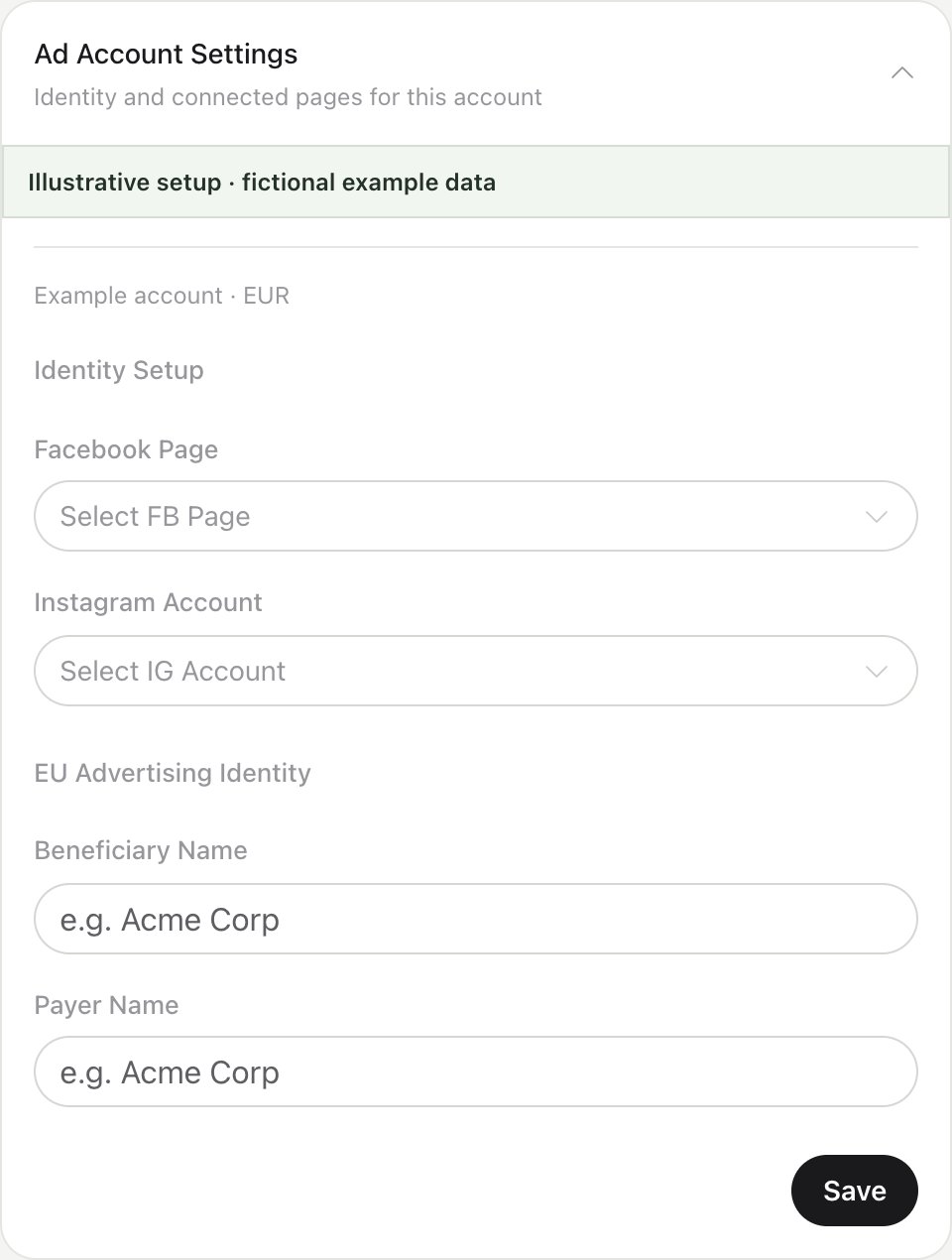 If the Page or Instagram list is empty, check the connected Facebook identity and its asset permissions, then [reconnect Meta](/connections/meta) if needed. A launch needs the advertiser's usable identity.
## Set tracking and ad-set defaults
Expand **Ad Set Settings**. Select **Default Pixel** for the website and account you intend to measure. Review **Audience** and **Placements**, then **Attribution Window**: **Click-through**, **Engaged-view**, and **View-through**. Save this section separately.
These are defaults for new ad sets in flows that consume them. Selecting a Pixel does not install website tracking or prove an event arrived. Check the Pixel and event setup in Meta, and use [website tracking](/websites/install) for AutoAdy's separate visitor analytics. Attribution defaults are not a retroactive change to existing ad sets or a guarantee that every report uses the same measurement basis.
## Set creative and destination defaults
In **Creative Settings**, choose **Disable all Meta creative enhancements** if you want supported new creations to opt out. When it is off, review the separate Image, Video, and Carousel enhancement controls, then **Save**. Check the creation result's verification or differences rather than assuming a saved preference proves what Meta applied.
In **Default Ad Copy**, review **Target Audience**, **Primary Text**, **Headlines**, **Descriptions**, and **Call to Action**, then save. These supply future copy defaults; editing them does not change the text of ads already published.
In **Website URL**, set **Default Website URL** and **UTM Parameters**, then save. For example:
```text theme={null}
utm_source=facebook&utm_medium=cpc&utm_campaign={{campaign.id}}
```
Check the final destination and tracking parameters in the publishing preview. Defaults do not replace a workflow's explicit inputs, and not every publishing route consumes every setting.
## Verify before launch
Open your [campaign builder](/meta-ads/create) or [Upload and launch ads](/creative/uploads). Confirm the account, Page, Instagram identity, destination, Pixel where applicable, copy, attribution, and creative treatment shown for that actual launch. Resolve loading or save errors before proceeding; each section has its own save action.
This documentation is built and hosted on [Mintlify](https://mintlify.com), a developer documentation platform.
If the Page or Instagram list is empty, check the connected Facebook identity and its asset permissions, then [reconnect Meta](/connections/meta) if needed. A launch needs the advertiser's usable identity.
## Set tracking and ad-set defaults
Expand **Ad Set Settings**. Select **Default Pixel** for the website and account you intend to measure. Review **Audience** and **Placements**, then **Attribution Window**: **Click-through**, **Engaged-view**, and **View-through**. Save this section separately.
These are defaults for new ad sets in flows that consume them. Selecting a Pixel does not install website tracking or prove an event arrived. Check the Pixel and event setup in Meta, and use [website tracking](/websites/install) for AutoAdy's separate visitor analytics. Attribution defaults are not a retroactive change to existing ad sets or a guarantee that every report uses the same measurement basis.
## Set creative and destination defaults
In **Creative Settings**, choose **Disable all Meta creative enhancements** if you want supported new creations to opt out. When it is off, review the separate Image, Video, and Carousel enhancement controls, then **Save**. Check the creation result's verification or differences rather than assuming a saved preference proves what Meta applied.
In **Default Ad Copy**, review **Target Audience**, **Primary Text**, **Headlines**, **Descriptions**, and **Call to Action**, then save. These supply future copy defaults; editing them does not change the text of ads already published.
In **Website URL**, set **Default Website URL** and **UTM Parameters**, then save. For example:
```text theme={null}
utm_source=facebook&utm_medium=cpc&utm_campaign={{campaign.id}}
```
Check the final destination and tracking parameters in the publishing preview. Defaults do not replace a workflow's explicit inputs, and not every publishing route consumes every setting.
## Verify before launch
Open your [campaign builder](/meta-ads/create) or [Upload and launch ads](/creative/uploads). Confirm the account, Page, Instagram identity, destination, Pixel where applicable, copy, attribution, and creative treatment shown for that actual launch. Resolve loading or save errors before proceeding; each section has its own save action.
This documentation is built and hosted on [Mintlify](https://mintlify.com), a developer documentation platform.